Problem summary
When switching between Wacom 'Pen Mode' and 'Mouse Mode' within the same session of Mari, painting no longer works as expected.
Customer reported version
3.1v1 Customer reported platform
RHEL7
Steps to reproduce
1) Access the 'Wacom Tablet Properties' from your applications.
2) Under 'Mapping' select the 'pen' mode.
3) Navigate to the 'Wacom Preference File Utility' and save a backup named 'penmode'.
4) Repeat previous steps for 'mousemode'.
5) Switch back to Pen mode and open Mari.
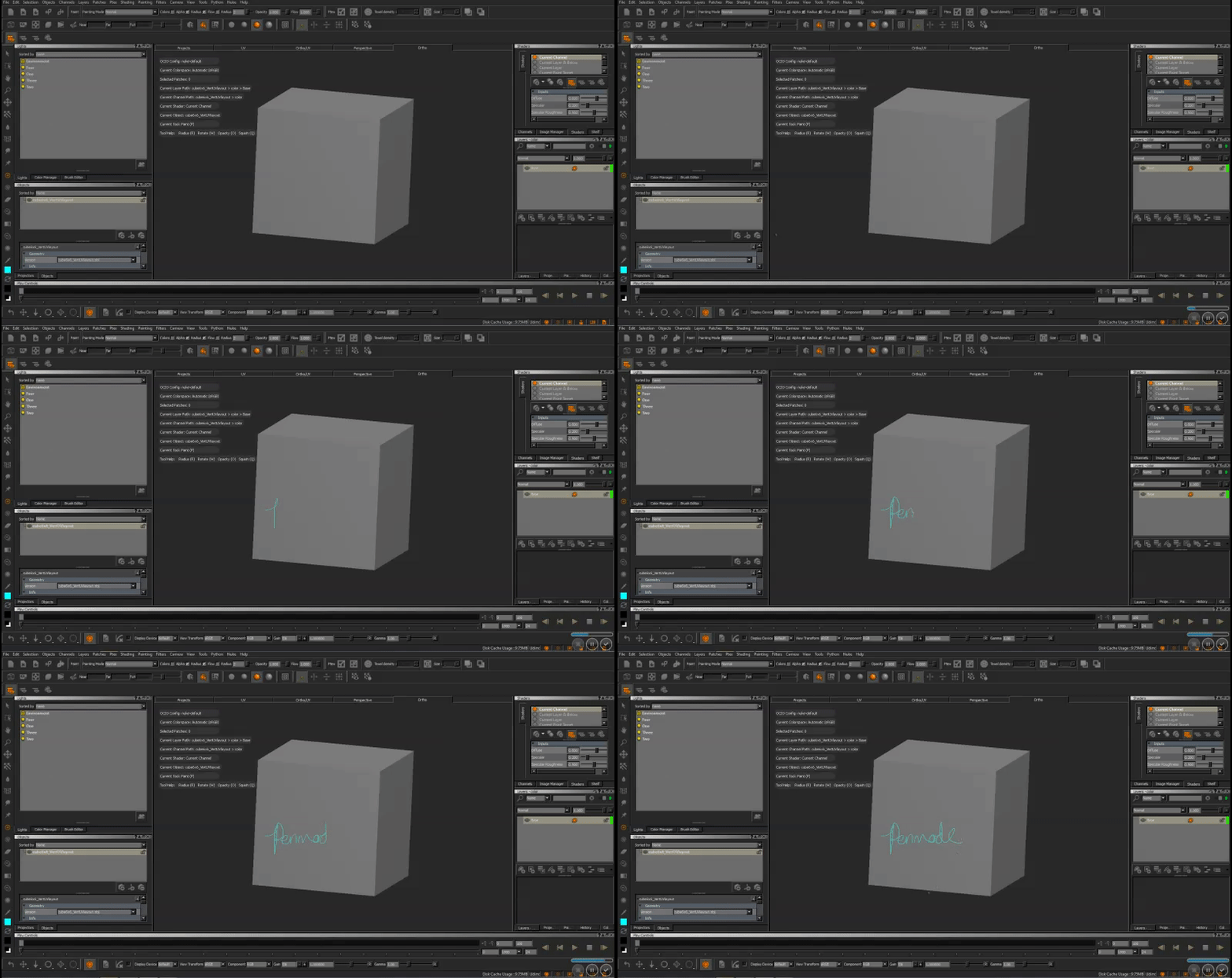
6) Create a project and test painting.
7) Using the 'Wacom Preference File Utility' restore 'mousemode' from your backup.
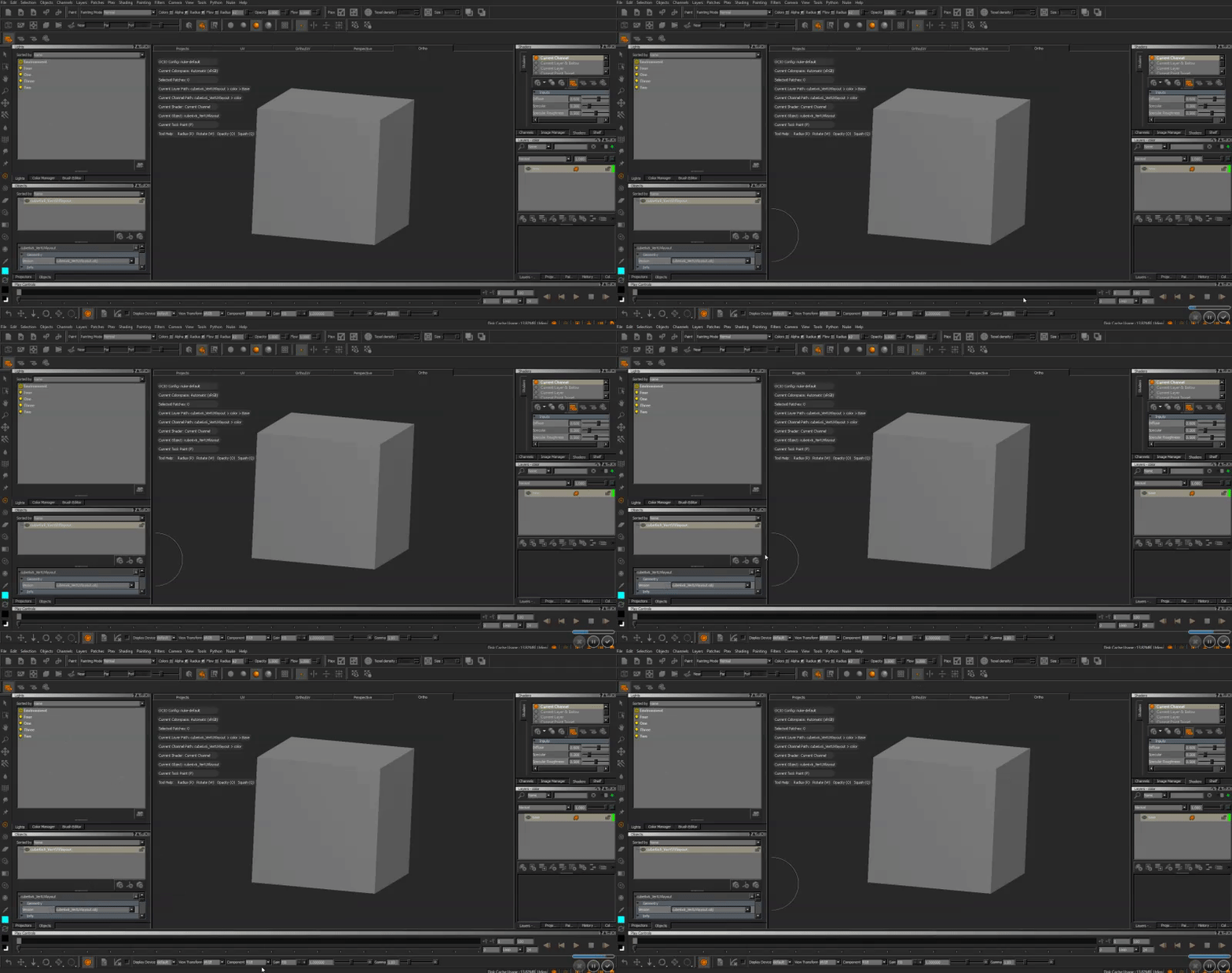
8) Attempt painting again. Observe issues with cursor mapping.
[ABOVE: Painting in PenMode]
[ABOVE: Painting in MouseMode]
Workaround
Occasionally opening Mari projects in mouse mode and switching between pen and mouse a few times rectifies the problem but this is not always the case.
Reproduced by support
OS: Windows 7, Linux CentOS 6.7, Mac OS X Sierra
Mari versions: 2.6v5, 3.0v2, 3.1v1, 3.1v3, 3.2v1
Expected behaviour
You would expect to still be able to interact with the Mari interface correctly despite switching between Wacom tablet modes. The only thing that should be affected is the Wacom behaviour itself not its functionality within Mari.
Actual behaviour
There is a discrepancy between where the cursor shows and where it paints in the viewer. The cursor will also snap to the edges of the viewer when moved and only works as expected in non-3D areas such as the shelves and palettes.